

Terminal Settings
Learn how to personalize each terminal, and enable necessary features.
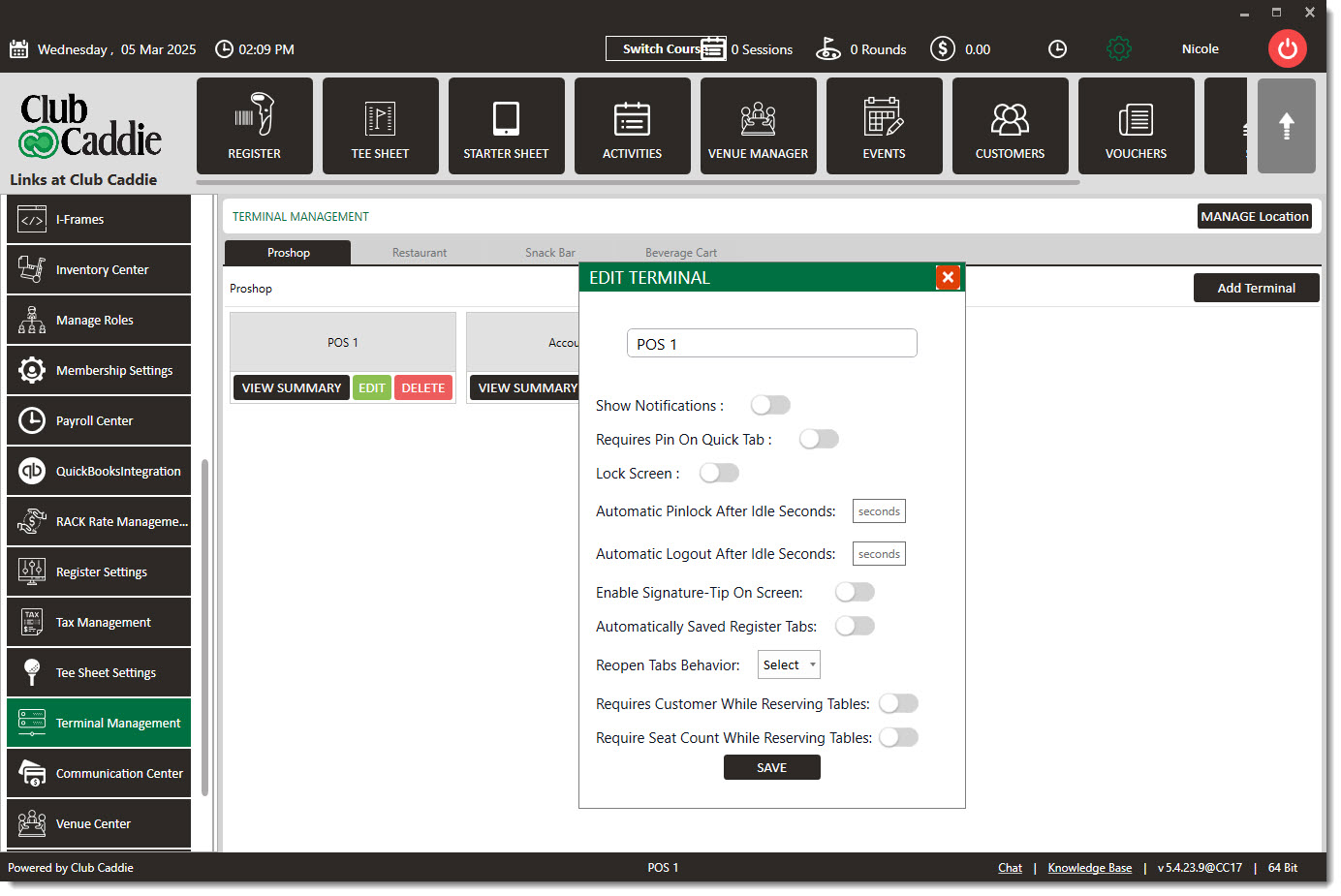
Show Notifications: To receive on-demand notifications
Requires Pin on Quick Tab: Requires an employee pin for the creation of a quick tab
Lock Screen: To display only orders tied to the currently logged-in employee
Enable Signature - Tip after payment: This is a useful feature for facilities that utilize devices like the Microsoft Surface Pro. This is a terminal-specific setting and will only work if you have entered the custom tip suggestions under manage locations.
*An example of this feature would be if the server could take the tablet to the table and ultimately have the customer swipe their card or utilize paying with the Membership Id option. They will be able to sign and tip right on the device itself.
Automatically Saved Register Tabs: should ALWAYS be toggled on. This ensures that tabs are automatically saved.
Reopen Tabs Behavior: There are 2 options here - Reopen all Employee Tabs and Do Not Reopen any Tabs.
If the option for Do not Reopen any Tabs is selected, whenever an Employee either logs into Club Caddie or uses PIN Lock to access the Register, none of their Open Tabs will appear.
This is especially helpful if an Employee is working in the Register with many open Tabs. All of the Open Tabs will be available to be Re-Opened by using Pull Tabs, but they will not automatically appear in the Register
Requires Customer when Reserving Tables: When this Setting is turned ON, any time that a Tab is created in the Register by assigning a Table, it will require the User to assign a Customer to that Table/Tab
- You will receive the error message below if you attempt to add a table to a tab without a customer assigned.
- This is best applied to facilities with memberships. To ensure the setting works, log out and back in to begin using.
Requires Customer when Reserving Tables: When this Setting is turned ON, any time that a Tab is created in the Register by assigning a Table, it will require the User to assign a Customer to that Table/Tab back in to begin using.
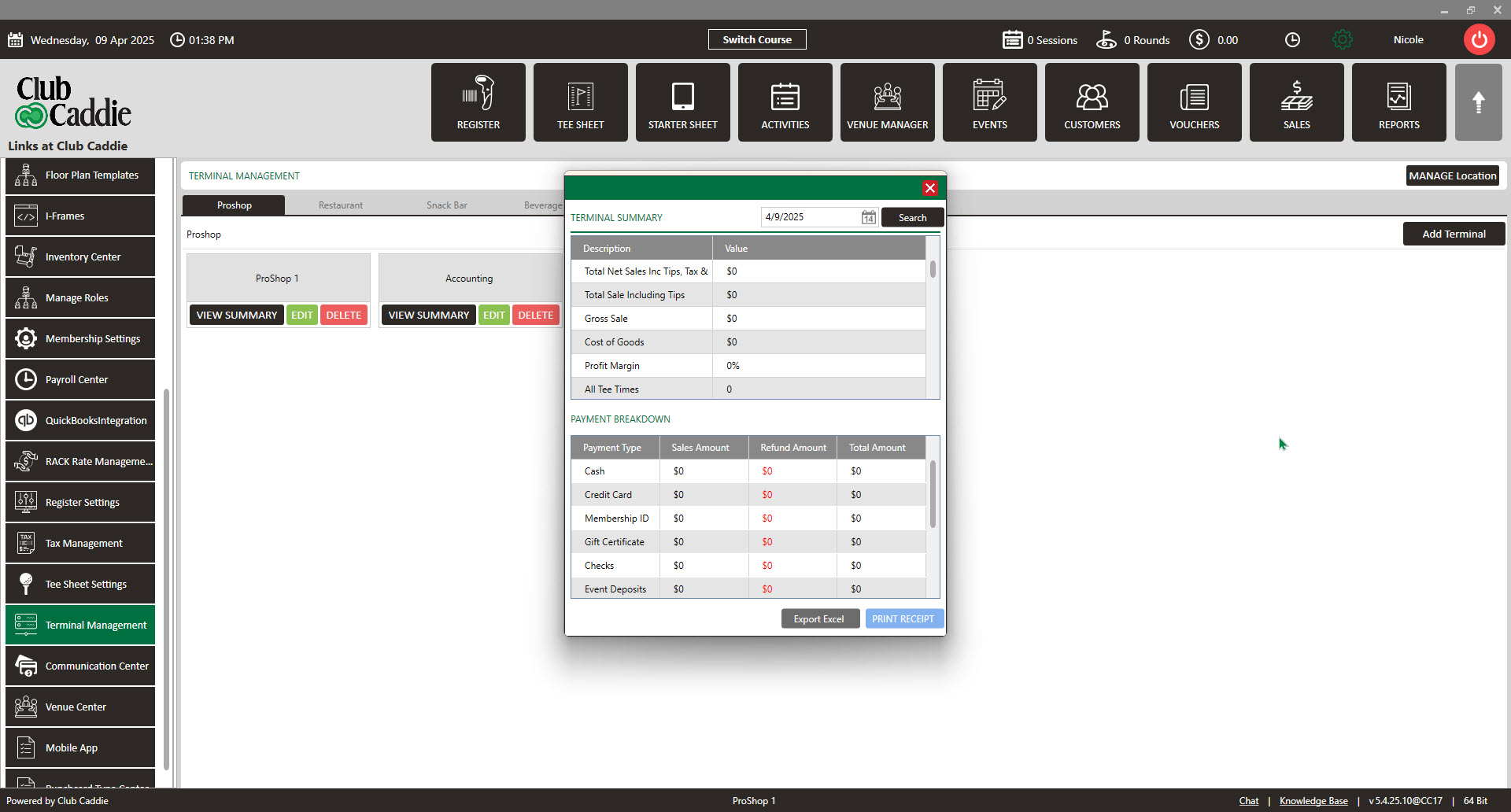
View Summary button on the terminal will pop up a Terminal Summary display.
You will see all the transactions carried out on that terminal. You can choose the Date of Summary which will include Total Sales, Gross Sale, Tee Times, Payment Break Down etc.
You can Export the Summary into Excel or Print Receipt for a copy of the summary.
Terminal Management Video Training
Watch how to manage terminal locations, add new terminals, and tailor settings to meet your needs. We’ve got you covered from creating new locations to setting up tip suggestions and ensuring secure operations.