

Below you will see the various reports that you can pull from to calculate your annual rounds depending on how your facility is set up.
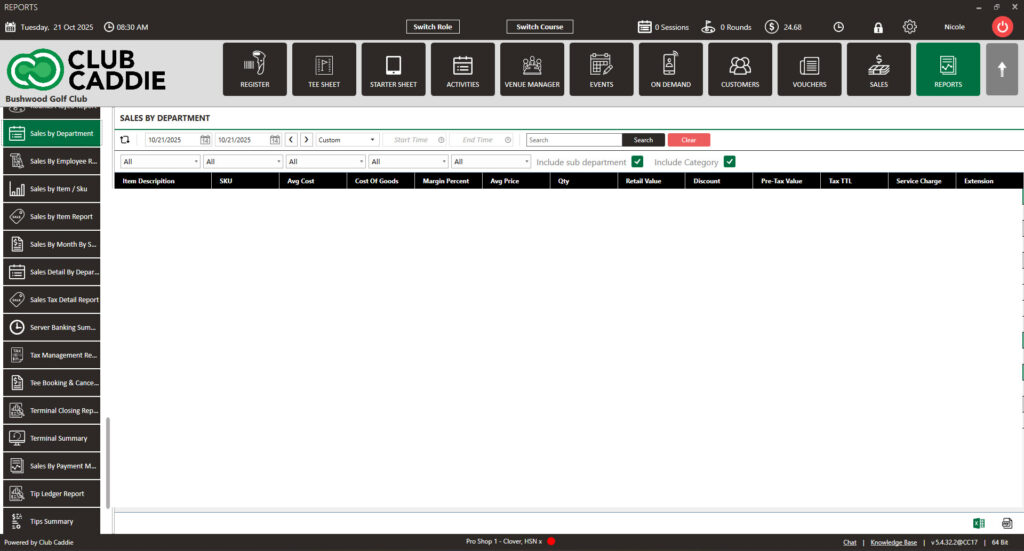
If a rate has inventory tied to it, the Sales by Department Report will display the specific inventory item associated with that rate (e.g., “Member Cart18,” “Member Green Fee,” “Resident 18 Green Fee,” etc.).
If a rate does not have inventory tied to it, those rounds will be reported under the Tee Time Department in the Sales by Department Report. Currently, all Outing and League check-ins are also included under the Tee Time Department.
The Sales by Department Report can be generated for a custom date range and filtered by department as needed. It can also be exported to Excel or PDF.
The Tee Time Department is hardcoded and will always appear near the bottom of the Sales by Department Report.
This report excludes Golf Outing and Golf League check-ins.
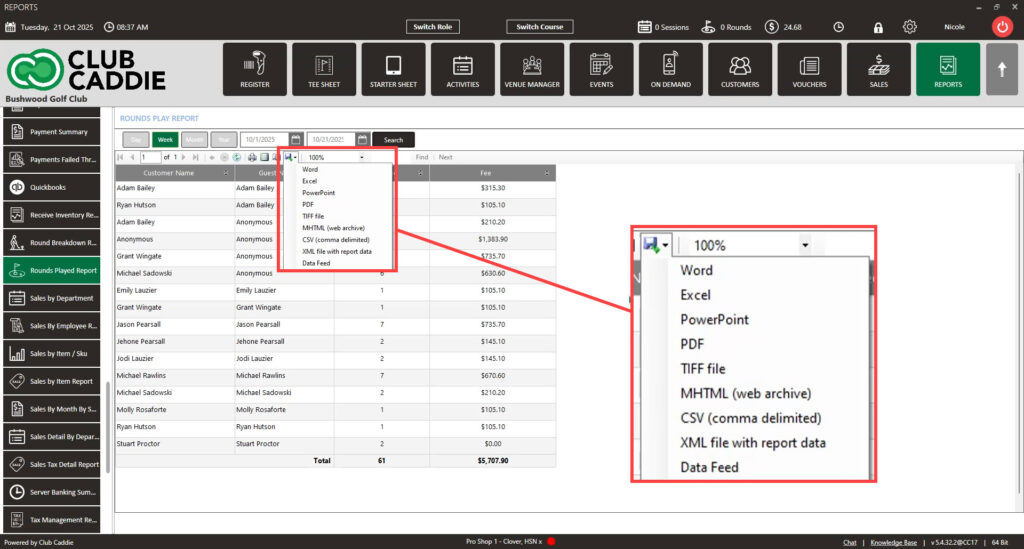
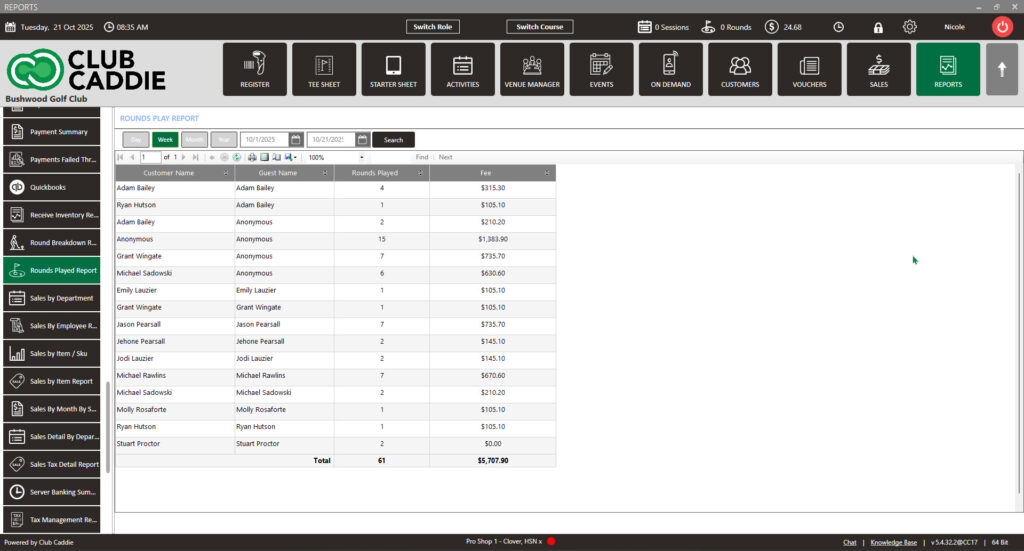
The Rounds Played Report displays each customer and guest’s name, along with the number of rounds played and the total amount spent.
This report does not include Golf Outing and Golf League check-ins.
You can generate the report for a specific time period and export it by clicking the arrow next to the floppy disk icon, then selecting your preferred export option.
The report can also be exported to Excel for further analysis.
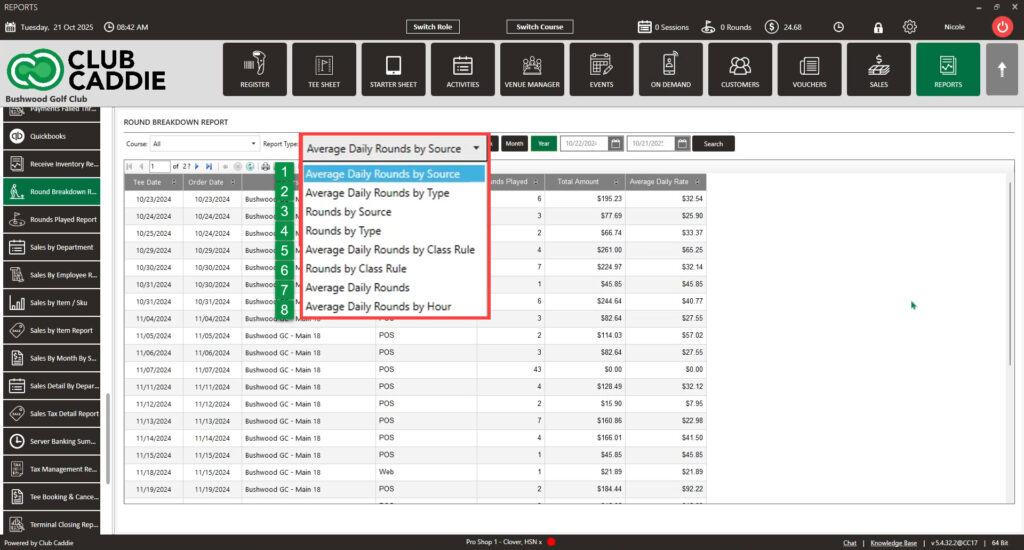
This report displays all rounds booked under a specific customer’s name, including pending rounds. It is not limited to checked-in rounds.
You can filter the report by a selected time frame, and it provides details such as the total number of rounds, total 9-hole rounds, total 18-hole rounds, and additional data.
You have not completed all required lessons and assessments.